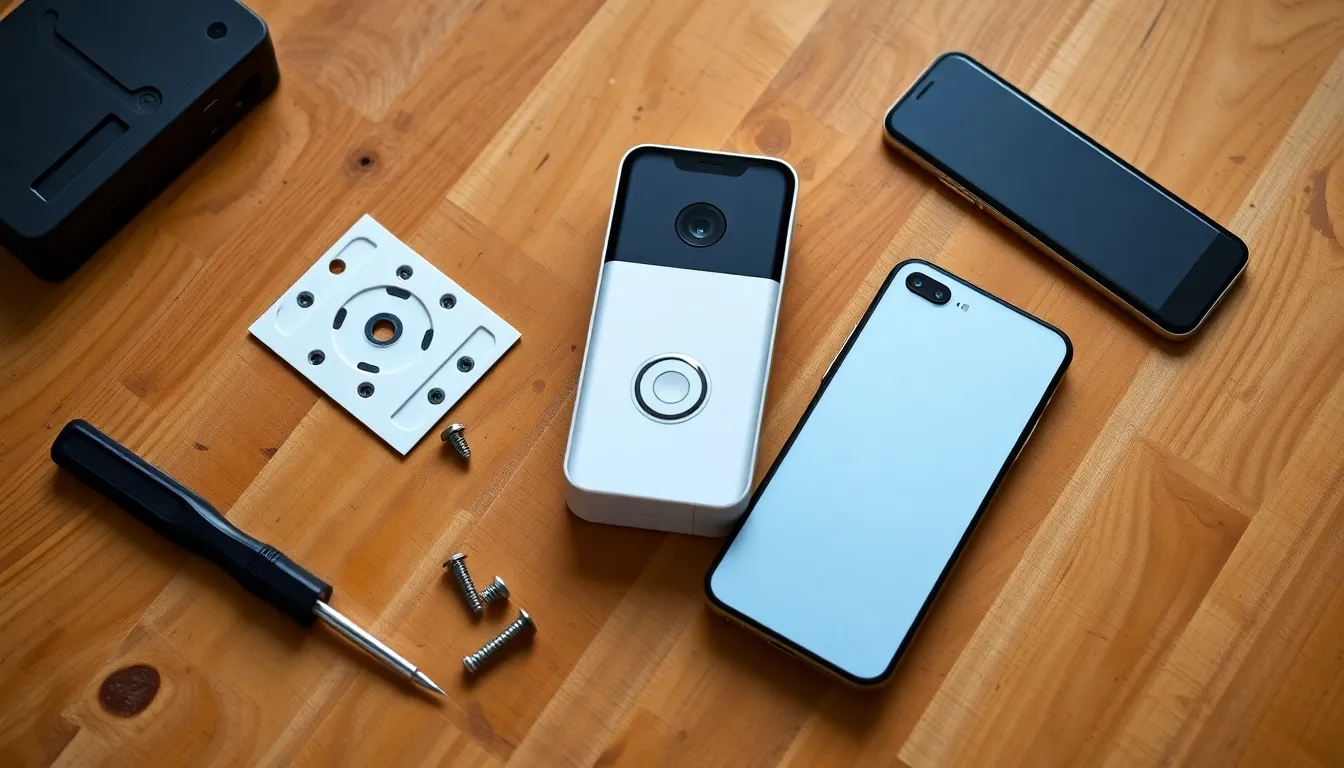
Why Set Up a Video Doorbell?
Hey there, beginner! If you're wondering how to set up a video doorbell, you've come to the right place. A video doorbell adds peace of mind by letting you see and talk to visitors from your phone, even when you're not home. It's perfect for renters or homeowners, and many models like Eufy or Reolink work without pricey subscriptions—storing footage locally on a microSD card or hub.
This guide covers everything step-by-step. We'll tackle battery-powered options (super renter-friendly, no wiring needed) and hardwired ones. No tech expertise required—just follow along. Safety first: always turn off power for wired installs, and use a stable ladder.
Expect the whole process to take 30-90 minutes. Let's dive in!
Tools and Materials Needed
Gather these before starting to make how to set up a video doorbell smooth.
For Battery-Powered Models (Renter-Friendly)
- Video doorbell kit (e.g., Eufy Video Doorbell or similar no-sub model)
- Phillips screwdriver
- Optional: Level tool for straight mounting
- Screws/anchors (usually included)
- MicroSD card (for local storage)
For Hardwired Models
- All above, plus:
- Drill with 1/16-inch bit (for brick/concrete)
- Wire strippers
- Voltage tester (safety essential!)
- Existing doorbell wiring or transformer (check 16-24V AC)
(Photo: Assorted tools laid out on a workbench)
Common mistake: Skipping the voltage tester for wired setups. Always test wires first to avoid shocks.
Choosing the Perfect Mounting Location
Location matters for clear video, strong WiFi, and visitor detection.
- Aim 4 feet high, centered on your door frame—eye level for most people.
- Face outward, avoiding direct sun glare or tree shadows.
- Check WiFi signal: Stand where you'll mount and use your phone's WiFi analyzer app. Aim for at least -60 dBm.
- Renter tip: Pick a spot with no permanent damage, like above the door frame using adhesive mounts if available.
- Avoid: Garages (vibration issues), corners (distorted view), or near vents (false motion triggers).
Test by holding the doorbell up temporarily. Great signal? You're golden.
(Photo: Person holding doorbell at door, phone showing WiFi strength)
Pro tip: For apartments, battery models stick on with heavy-duty adhesive—no holes!
Step-by-Step Physical Installation
Now, the hands-on part. We'll split by power type.
Installing a Battery-Powered Video Doorbell
These are renter favorites—no electrician needed.
-
Charge the battery fully using the included cable (usually 4-6 hours).
-
Remove the mounting bracket from the doorbell body (twist or unclip).
-
Hold the bracket at your chosen spot. Use a level to ensure it's straight.
-
Mark screw holes with a pencil.
-
For drywall: Screw directly. For brick/stucco: Drill pilot holes, insert anchors, then screw.
(Photo: Drilling pilot hole in brick)
-
Snap or clip the doorbell onto the bracket—secure but easy to remove for renters.
-
Reinsert the charged battery.
Common mistake: Crooked mount. Double-check with level!
Installing a Hardwired Video Doorbell
Safety alert: Turn off power at the breaker. Verify with voltage tester.
-
Remove your old doorbell button (unscrew, disconnect wires).
-
Check wiring: Two wires? Perfect. Note colors (usually any order fine).
-
Attach wires to doorbell terminals (strip 1/4 inch insulation). Tighten screws—no bare wire exposed.
-
Mount the bracket: Level it, mark holes, drill if needed, screw in.
(Photo: Wires connected to terminals)
-
Snap doorbell onto bracket.
-
Restore power at breaker.
Renter note: If leasing, opt for battery or ask landlord permission. Wireless chimes pair via app—no wiring.
(Photo: Hardwired unit mounted securely)
Downloading the App and Account Setup
Most no-sub models use simple apps like Eufy Security or brand-specific ones.
-
Download from App Store (iOS) or Google Play (Android): Search "[Brand] Home" or similar.
-
Create an account: Email, strong password. Skip subscriptions—enable local storage.
-
Add device: Tap "+" or "Add Device," select your model.
(Photo: App interface showing add device button)
Beginner tip: Enable two-factor authentication for security. Use a dedicated email if privacy-conscious.
Connecting to WiFi and Pairing
WiFi is key—2.4GHz networks work best (not 5GHz).
-
In the app, follow prompts: Press doorbell button or scan QR code on device.
-
Select your WiFi network, enter password.
-
Wait for green light or "Connected" status (1-2 minutes).
Trouble? Restart router, move closer. Renter hack: Use a WiFi extender near the door.
(Photo: App WiFi selection screen)
Common mistake: Wrong band. Check router settings for 2.4GHz.
Configuring Motion Zones and Settings
Customize to cut false alerts.
-
Open app settings for your device.
-
Draw motion zones: App overlay shows door view—block street/driveway areas.
-
Set sensitivity: Low for busy areas, medium for quiet homes.
-
Adjust detection range: 0-30 feet typical.
-
Enable person/vehicle detection if available (AI smarts without sub).
-
Schedule quiet hours (e.g., night mode).
(Photo: App screen with motion zones drawn)
Renter-friendly: Zones prevent neighbor triggers. Save locally—no cloud needed.
Testing Your Video Doorbell
Verify everything works!
-
Press doorbell: Check live view opens instantly on phone.
-
Test two-way audio: Speak via app—hear echo at door.
-
Walk-test motion: Trigger alert? View recording.
-
Night vision: Test in dark—IR should glow faintly.
-
Battery/wired status: App shows level/signal.
Invite a friend to ring while away—full remote test.
(Photo: Phone screen showing live view and alert)
If alerts fail, recheck zones.
Common Mistakes to Avoid
Don't let these trip you up:
- Weak WiFi: Solution—extender or mesh system.
- Poor angle: Remount higher/shift left/right.
- Full storage: Insert/format microSD in app.
- App glitches: Force close, reinstall.
- Over-tightening screws: Strips threads—hand-tighten.
Safety reminder: Ladder on flat ground, one person steadying.
Troubleshooting Common Issues
Hit a snag? Here's your fix-it toolkit.
Weak Signal or No Connection
- Move router closer or add extender (e.g., TP-Link affordable ones).
- Forget network in app, re-pair.
- Update firmware via app.
False Motion Alerts
- Tighten zones, lower sensitivity.
- Trim bushes blocking view.
- Check for heat sources (lights, cars).
No Video or Audio
- Restart device (remove battery 30 seconds).
- Check internet speed (min 2Mbps upload).
- App permissions: Allow notifications/camera.
Battery Drains Fast
- Reduce motion sensitivity.
- Disable unnecessary features.
- Charge weekly initially.
Wired Power Problems
- Voltage too low? Upgrade transformer (pro job).
- Loose wires: Re-strip/tighten.
For no-sub models like Eufy: View history in app—local SD holds weeks of clips.
Still stuck? Brand support chats are beginner-friendly, or YouTube model-specific vids.
Final Thoughts
Congrats—you now know how to set up a video doorbell like a pro! Battery for easy/renter life, wired for always-on. Enjoy safer doorsteps without subscriptions.
Questions? Drop a comment. Happy installing!
(Photo: Finished video doorbell at modern door)