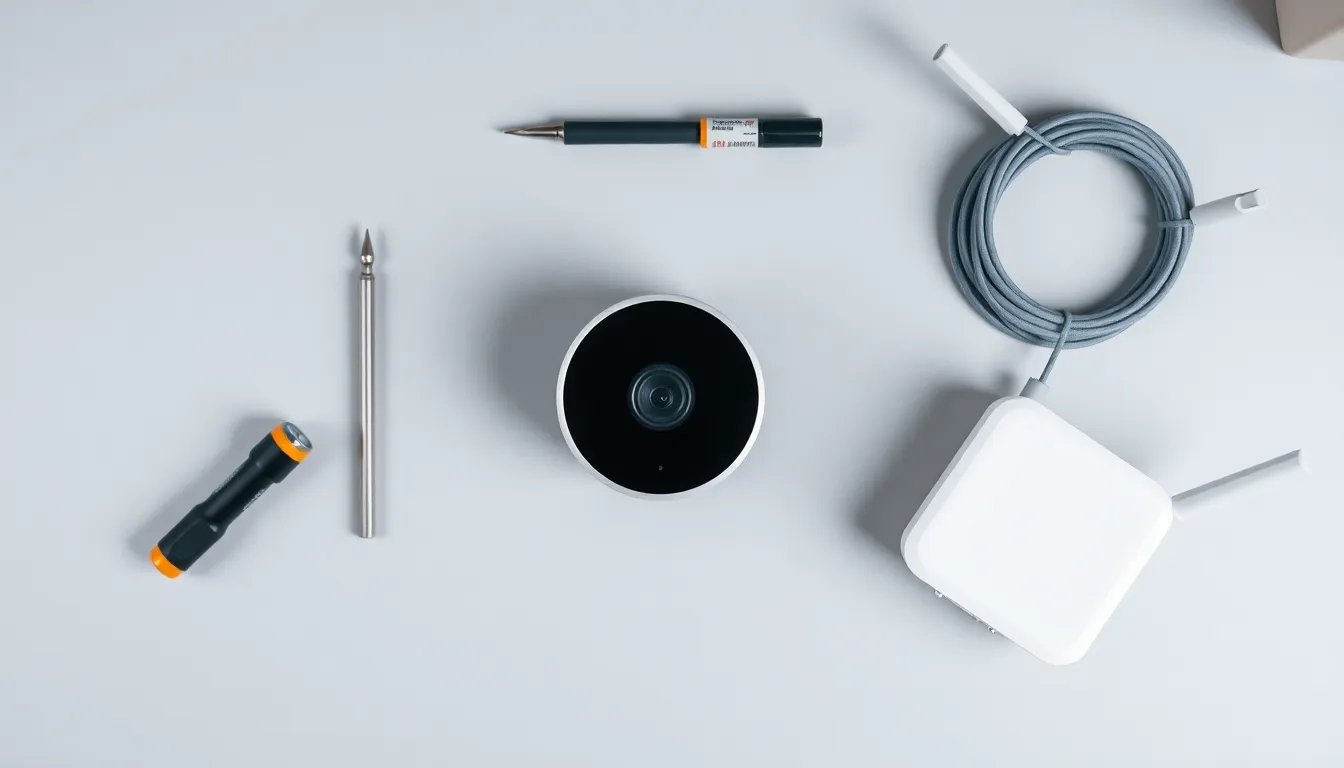
Why Your Ring Camera Keeps Going Offline (And How to Fix It)
Hey there, Ring camera owner! If your camera keeps dropping offline, you're not alone. This is one of the most common frustrations for users, but the good news is it's usually fixable with some simple troubleshooting. In this guide, we'll walk through the top reasons—like weak WiFi signals, power issues, overheating, firmware glitches, app conflicts, and network interference—and give you step-by-step ring camera offline fixes that actually work.
We'll start with the easiest steps and move to more advanced ones. No tech wizardry required—just basic DIY skills. By the end, you'll have your camera back online and staying that way. Let's dive in!
Quick First Steps: The Easiest Ring Camera Offline Fixes
Before jumping into specific causes, try these universal quick fixes. They solve the problem 50% of the time.
-
Restart your Ring camera: Press the setup button on the back (or top, depending on model) for 10 seconds until it resets. Wait 1-2 minutes for it to reconnect.
-
Restart your router and modem: Unplug them for 30 seconds, then plug back in. This clears temporary glitches.
-
Check the Ring app: Force close the app, reopen it, and pull down to refresh your device list.
-
Toggle WiFi in the app: Go to Device Settings > Device Health > Change WiFi Network, then reconnect to the same network.
If these don't work, let's tackle the root causes one by one.
Fix 1: Weak WiFi Signal – The #1 Culprit
A spotty WiFi signal is the most frequent reason for ring camera offline issues. Ring cameras need a strong 2.4GHz connection (they don't support 5GHz well).
Step-by-Step Fixes for Weak Signal
-
Check signal strength in the app: Open Ring app > Devices > select your camera > Device Health. Look for RSSI (signal strength). Aim for -65 dBm or better (less negative is stronger).
-
Reposition the camera: Move it closer to your router, ideally within 30 feet with minimal walls. Test live view as you go.
-
Use a WiFi extender: Plug in a compatible repeater (like TP-Link RE315) halfway between router and camera. Set it up via its app, then reconnect your Ring.
Advanced Option: Set Up a Mesh Network
If your home is big, upgrade to a mesh system like Eero or Google Nest WiFi.
-
Buy a mesh kit (3-pack for whole-home coverage).
-
Set up main router node near your modem.
-
Place satellite nodes near the camera.
-
Connect Ring via the mesh app.
Common Mistake: Forgetting to separate 2.4GHz and 5GHz bands on your router. Go to router settings (usually 192.168.1.1) and rename them (e.g., "MyWiFi_2.4" and "MyWiFi_5").
Prevention Tips
- Place cameras high up (e.g., on eaves) for better line-of-sight to router.
- Avoid thick walls or metal objects between camera and router.
Fix 2: Power Problems – Don't Overlook the Basics
Whether battery-powered or wired, power hiccups can knock your camera offline.
Tools Needed
- Screwdriver (for wired models)
- Smartphone with Ring app
Step-by-Step Power Fixes
For Battery Models (e.g., Spotlight Cam Battery):
-
Remove the battery: Unscrew the security screw, slide off faceplate, pop out battery.
-
Charge fully: Use the included USB cable for 4-6 hours. Check charge level in app (should be 100%).
-
Reinsert and test: Securely snap back, wait 5 minutes.
For Wired/Plug-in Models:
-
Unplug from outlet or disconnect wires.
-
Check outlet: Plug in a lamp to test if it's live.
-
Inspect cable/wiring: Look for frays or loose connections. Tighten if needed.
-
Reconnect and power cycle: Wait 30 seconds before plugging back.
Common Mistake: Partial battery charges. Always go to 100%—low power triggers offline mode to save energy.
Prevention Tips
- Swap batteries every 6 months.
- Use weatherproof enclosures for outdoor plugs.
Fix 3: Overheating – Keep It Cool
Ring cameras throttle or go offline if they get too hot (above 120°F/49°C), common in direct sun.
Step-by-Step Overheating Fixes
-
Check temperature in app: Device Health shows current temp. If high, proceed.
-
Relocate temporarily: Move to shade and monitor for 24 hours.
-
Improve airflow: Ensure vents aren't blocked by mounts or debris. Gently clean with a soft brush.
-
Add shade: Install a camera hood or awning (Amazon has Ring-specific ones for $10-20).
Common Mistake: Mounting facing west in afternoon sun. Face north or east instead.
Prevention Tips
- Optimal placement: Under eaves or porches.
- Avoid black surfaces that absorb heat.
Fix 4: Firmware Glitches – Update and Reset
Outdated or buggy firmware causes random disconnects.
Step-by-Step Firmware Fixes
-
Check for updates: Ring app > Devices > Device Settings > General Settings > About. Tap "Check for Update."
-
Force update: If available, ensure camera is online and charging. It may take 10-20 minutes.
-
Factory reset as last resort:
- Press setup button 20 seconds.
- Re-setup via app (scan QR code).
- Note: This erases custom settings.
Common Mistake: Updating over weak WiFi—move closer first.
Prevention Tips
- Enable auto-updates in app settings.
- Check monthly.
Fix 5: App Conflicts – Refresh Your Connection Hub
The Ring app mediates everything. Glitches here mimic offline cameras.
Step-by-Step App Fixes
-
Update app: App Store/Google Play > search Ring > Update.
-
Clear cache (Android): Settings > Apps > Ring > Storage > Clear Cache.
-
Reinstall: Delete app, reinstall, log in, re-link devices.
-
Check permissions: Settings > Apps > Ring > Permissions > enable Location, Camera, WiFi.
Common Mistake: Multiple accounts. Use one primary.
Prevention Tips
- Log out/in weekly.
- Use latest OS version.
Fix 6: Network Interference – Clear the Airwaves
Neighbor WiFi, microwaves, or cordless phones jam 2.4GHz signals.
Tools Needed
- Free WiFi analyzer app (e.g., WiFi Analyzer for Android, Airport Utility for iOS)
Step-by-Step Interference Fixes
-
Scan for interference: Open analyzer app, see crowded channels.
-
Change router channel: Router settings > Wireless > 2.4GHz > Channel (pick 1, 6, or 11 if least crowded).
-
Switch to 2.4GHz only: Disable 5GHz temporarily or band-steer.
-
Enable QoS: Router settings > QoS > Prioritize Ring device (by MAC address from app).
Advanced: Use a dedicated guest network for IoT devices.
Common Mistake: Ignoring 5GHz band split—Ring prefers 2.4GHz.
Prevention Tips
- Router firmware update.
- Keep router away from microwave.
Optimal Placement and Router Tweaks for Prevention
To stop offline issues long-term:
Best Camera Placement
- 10-30 feet from router.
- Elevated, clear view.
- Avoid corners with poor signal bounce.
Router Optimization
- Firmware update via manufacturer app.
- Set static IP for Ring in router (prevents DHCP conflicts).
- Use WPA2 security (not WPA3 yet for all Rings).
These tweaks keep your setup rock-solid.
Materials and Tools Summary
Most fixes need just:
- Ring app
- Smartphone
- Screwdriver
- Optional: WiFi extender ($30), mesh kit ($150+), WiFi analyzer app (free)
Common Mistakes to Avoid Across All Fixes
- Rushing steps—always wait 2-5 minutes post-restart.
- Ignoring app signal readings.
- Outdoor wiring without GFCI outlets.
- Forgetting to test live view after each change.
Final Troubleshooting Tips
If your camera still goes offline:
- Monitor patterns: Does it happen at night? (Power save). Rainy days? (Signal block).
- Log errors in app and note times.
- Test with another device on same WiFi.
When to Contact Ring Support
You've got this far—great job! But if fixes fail after 24 hours, or if it's a new hardware fault (e.g., no lights), reach out to Ring support. Go to ring.com/support, chat or call (available 5AM-9PM MST). Have your serial number (in app or on device) ready, plus troubleshooting notes. They offer warranty swaps for defects.
Your Ring camera should be reliable now. Stay vigilant with monthly checks, and enjoy peace of mind! If issues pop up again, revisit signal strength first—it's usually the fix.